

Unlock Your Potential: Transform Your Workspace for Ultimate Comfort and Productivity!
In today's fast-paced world, the importance of an ergonomic workspace cannot be overstated. An optimized environment not only enhances our productivity but also significantly boosts our comfort levels, making long hours spent at a desk more bearable. The right keyboard and mouse settings play a crucial role in achieving this balance. Poorly configured devices can lead to discomfort, fatigue, and even long-term health issues, such as repetitive strain injuries. In this article, we will delve into the best keyboard and mouse settings that can help you unlock your full potential by maximizing your workspace's efficiency and comfort.
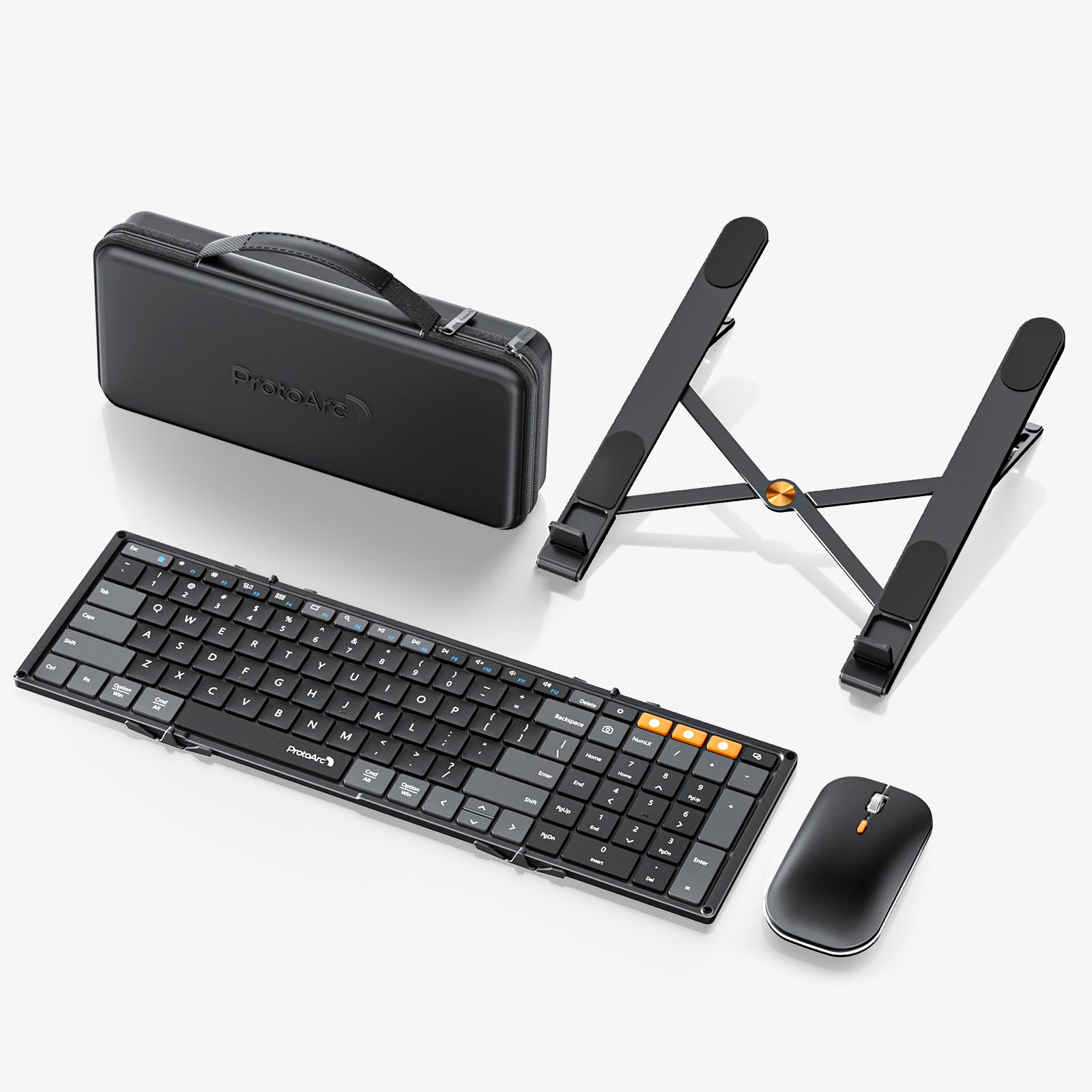
Understanding Keyboard Settings
The height and angle of your keyboard are fundamental aspects that influence your typing comfort. Ideally, your keyboard should be positioned at a height where your elbows are at a 90-degree angle, allowing your wrists to remain in a neutral position. This reduces strain and helps prevent discomfort over extended use. If the keyboard is too high or too low, you may find yourself leaning uncomfortably, leading to fatigue.
Additionally, the distance between your keyboard and screen is pivotal. A good rule of thumb is to keep your keyboard about an arm's length away from your screen, allowing for comfortable viewing without straining your neck. You might consider using a keyboard tray or an adjustable desk to help achieve this setup, which can be particularly helpful based on your unique body dimensions and workspace layout.
Key Customizations for Efficiency
One of the most effective ways to enhance productivity is through key remapping. By assigning frequently used commands or shortcuts to specific keys, you can streamline your workflow significantly. For instance, if you often use the copy and paste functions, assigning them to more easily accessible keys can save you valuable time.
Moreover, using a keyboard layout that complements your personal preferences can also improve your typing speed and accuracy. Some users may find that a Dvorak or Colemak layout works better for them compared to the standard QWERTY layout. Exploring these options can lead to a more satisfying typing experience.
Optimizing Mouse Settings
Just as important as keyboard settings, mouse sensitivity and DPI (dots per inch) settings can greatly affect how smoothly and efficiently you navigate your digital workspace. A higher DPI allows for faster cursor movements with less physical effort, which can be beneficial for tasks that require quick and precise movements. However, finding the right balance is key; too high a sensitivity may lead to overshooting targets on the screen.
Ergonomics play a vital role in mouse usage as well. Your mouse should be positioned so that your arm remains relaxed and close to your body. A good practice is to keep your mouse at the same level as your keyboard, reducing the need for your wrist to twist or stretch uncomfortably. Consider investing in a mouse pad with wrist support to enhance comfort, especially if you spend long hours on your computer.
Mouse Customizations for Productivity
Programmable buttons on your mouse can be a game changer for productivity. By assigning specific functions, such as opening applications or executing macros, you can have greater control at your fingertips, reducing the need to switch between the keyboard and mouse frequently.
The way you grip your mouse also impacts comfort and efficiency. Some individuals prefer a palm grip, while others might find a claw grip or fingertip grip more comfortable. Experimenting with different grips can lead to discovering what feels best for your hand shape and size, ultimately enhancing your overall experience.
Combining Keyboard and Mouse Settings for Maximum Comfort
Creating a cohesive workspace that harmonizes both keyboard and mouse settings is essential for optimal comfort. Start by ensuring both devices are at the same height and distance from your body. This alignment not only promotes good posture but also minimizes strain on your wrist and shoulders.
Equally important is the practice of taking regular breaks. Standing up, stretching, and moving around can prevent stiffness and rejuvenate your focus. Maintaining good posture is crucial; keep your back straight, shoulders relaxed, and feet flat on the ground to support your overall well-being while working.
Enhancing Workspace Comfort and Productivity
In summary, optimizing your keyboard and mouse settings is a powerful way to enhance both comfort and productivity in your workspace. By adjusting the height and angle of your keyboard, fine-tuning mouse sensitivity, and exploring customizations, you can create an environment that supports your work style. It's crucial to regularly assess and adjust your setup—your comfort and productivity depend on it. Take the time to evaluate your current arrangements and make the necessary adjustments; your future self will thank you!